How to Share Your Screen Without Losing the Room
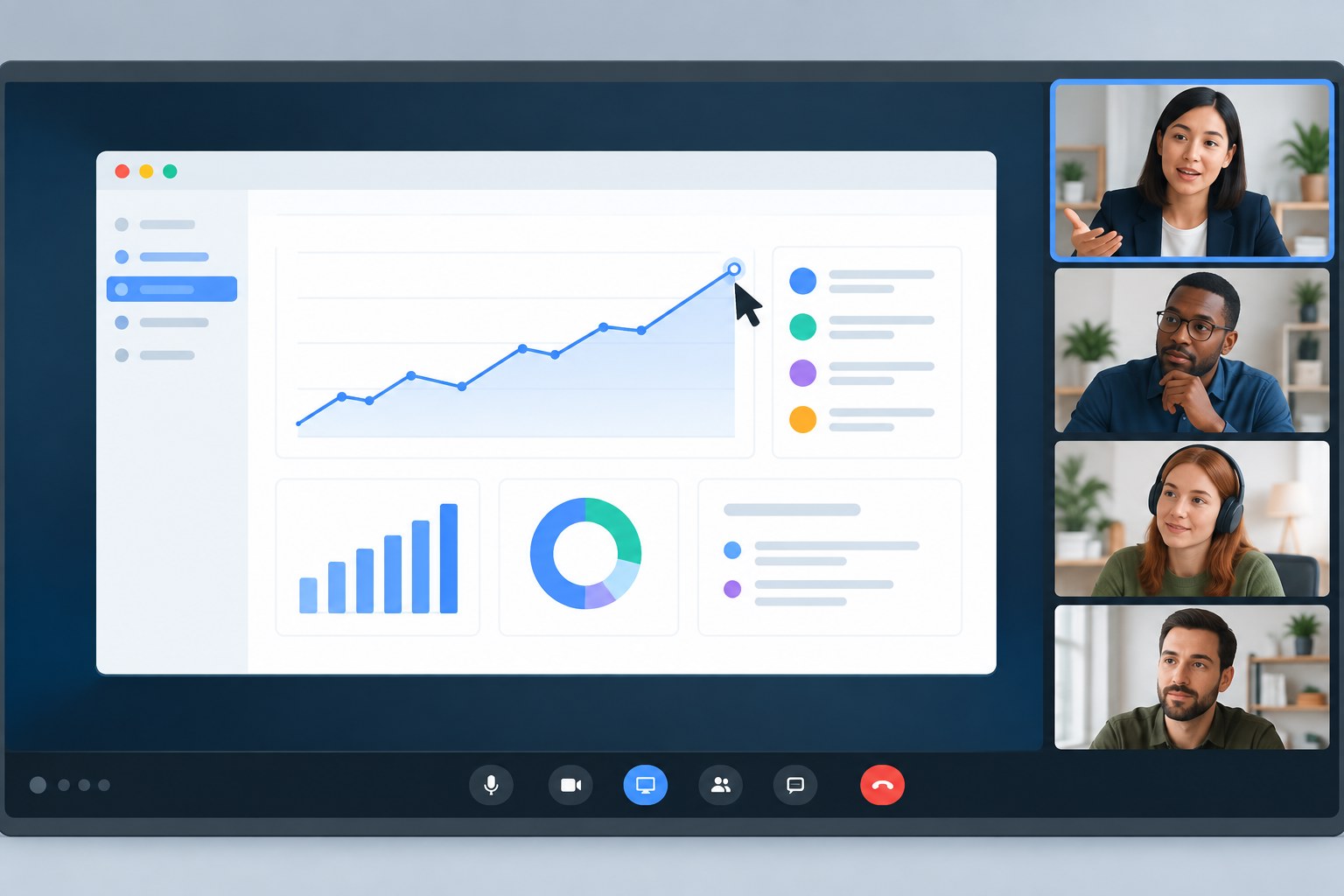
You start sharing a spreadsheet and the conversation goes quiet. You are looking at the correct cells, but nobody else knows which row matters. Someone asks you to zoom in, another person is still seeing the previous window, and the decision you wanted to discuss has become a tour of your desktop.
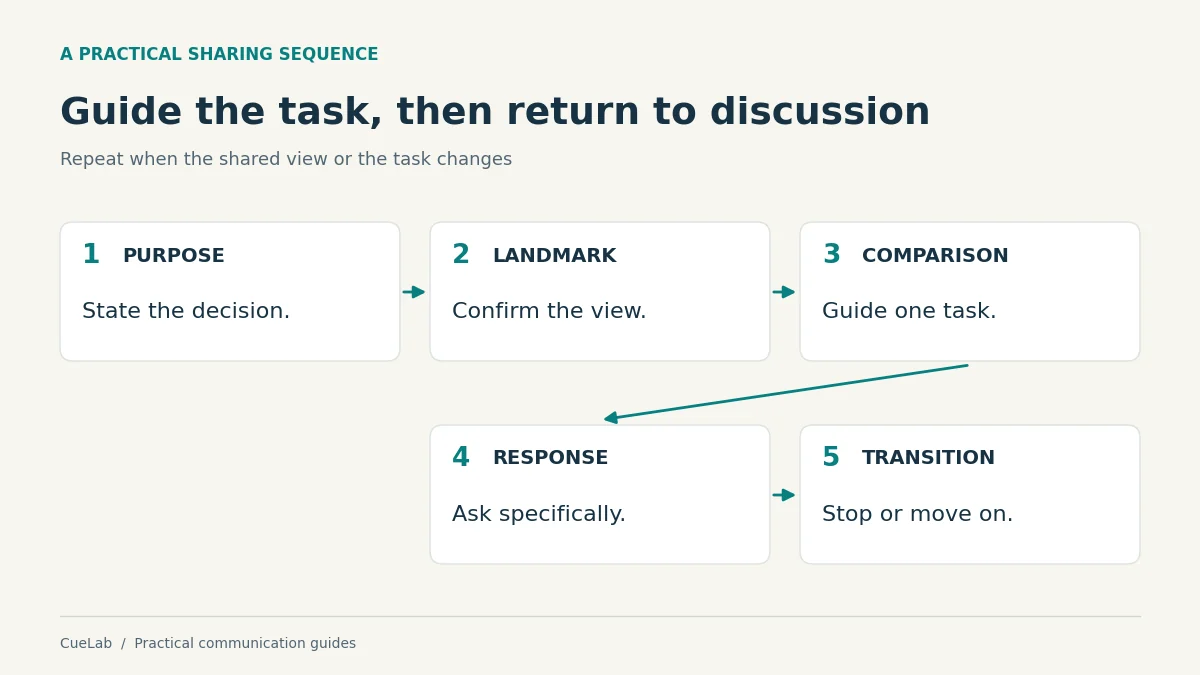
Good screen sharing gives people a shared point of reference. Before you click, explain what they will see and what they should look for. Once the content appears, confirm a specific landmark, guide attention through one task, and stop sharing when the visual has finished its job. This guide shows how to do that for a spreadsheet, a live demonstration, and a collaborative review.
Decide what the shared screen is supposed to do
A screen can support an explanation, demonstrate a process, or provide a workspace for discussion. These uses need different preparation. A finished slide can stay still while you explain it. A demonstration changes as you act. A shared document may need time for participants to read and contribute.
Write the desired outcome in one sentence. “Show the dashboard” describes an action by the presenter. “Agree which three overdue requests should be handled first” describes the meeting’s job. That second sentence tells you which part of the dashboard deserves space and which panels can remain hidden.
Also decide whether participants need to follow your exact view or inspect the source independently. If the meeting requires checking individual rows, a properly shared document may be more useful than watching someone scroll. If it requires explaining a pattern, a prepared excerpt may be easier to follow.
Choose a sharing boundary that fits the task
Sharing one application window usually limits how much unrelated material appears. Sharing an entire screen makes moving between applications easier, but also makes the surrounding desktop part of the presentation. Neither choice replaces checking what is visible.
Before the meeting, close unrelated tabs, remove private material from the demonstration, and silence notifications. If you will use a real system, prepare an appropriate demonstration account or approved sample data. Do not assume that a window share hides every dialog, preview, or notification on every platform.
Microsoft’s Teams documentation distinguishes sharing a screen from sharing a window and describes additional presentation options. It also notes that shared computer audio can include notification sounds. The exact controls vary by platform, device, and meeting permissions, so test the option you plan to use rather than relying on a remembered interface.
For a short explanation, opening the required page in advance often does more for the meeting than a complicated presenter layout. You want the first shared frame to contain the material the audience came to discuss, not a file search.
Open with a purpose and a landmark
“Can you see my screen?” confirms very little. Someone may see a screen but not the correct one, or they may see the correct document at an unreadable size. Ask a question that identifies both the content and a useful landmark.
For example: “You should see the request list with a column called Days Waiting. Can someone confirm that heading is readable?” Then explain the task: “We are choosing three requests to handle first. Start with the five highlighted rows.”
Do not wait for every attendee to answer aloud. One specific confirmation can check the initial share, while a clear invitation to report problems keeps the channel open. If the group includes people using smaller screens, ask about readability directly rather than interpreting silence as agreement.
Worked example: a spreadsheet review that leads to a decision
Imagine a fictional team reviewing twelve overdue requests. The spreadsheet contains many fields, but today’s decision depends on waiting time, impact, and who can take the work. Prepare a view containing the request name and those three columns.
Begin: “We need to assign three requests before the meeting ends. This view shows waiting time, customer impact, and the proposed owner.” Confirm that the column headings are readable. Give participants a moment to orient themselves before discussing the first row.
Next, guide one comparison: “Request A has waited longest, but request B is blocking an active order. Compare those two impact descriptions.” Keep the screen still while people inspect the cells. A moving cursor can indicate the location once, but it should not keep circling while people read.
Ask a decision-shaped question: “Which should take the first slot, and what is the reason?” That is more useful than “Any thoughts?” because it specifies the action and the evidence needed. After the discussion, record the agreed owner in the shared document and read the decision aloud.
Finish by restating the three assignments and the unresolved item. If the next part of the meeting concerns a different issue, stop sharing. Leaving the old spreadsheet visible invites attention to remain on a task that has already ended.
Make text readable before asking people to interpret it
Your own screen size is a poor guide to the audience’s view. Meeting controls, participant tiles, captions, and a smaller device can reduce the space available for shared content. An ordinary spreadsheet at your usual zoom level may arrive as a dense block of text.
Increase the content zoom or reduce the visible area until the relevant labels are readable. Hide unnecessary columns and application panels where appropriate. Avoid increasing zoom so much that the audience loses the row or column headings needed to understand the values.
There is no single font size that works for every shared-screen arrangement. Test the view from a participant device or with a colleague. Ask them to read an actual label, not simply say whether the screen looks fine.
If the task is a comparison of numbers, consider whether a prepared table or chart would communicate it more clearly than the live application. The original software interface may contain controls, menus, and status panels that contribute nothing to the explanation.
Keep the listener’s route different from your working route
You know the application, so you can open a menu, change a filter, switch tabs, and explain the result almost simultaneously. The audience may still be locating the menu you opened first. A demonstration needs a visible sequence even when your own work is normally faster.
Before a consequential action, state what it changes: “I am filtering to requests older than seven days.” Perform the action, let the result settle, and identify the visible change: “There are now twelve rows.” Then explain why it matters.
You do not need to narrate every mouse movement. Describe actions that change the audience’s understanding or the state of the task. “I’m moving the cursor” adds little; “This filter excludes requests that have already been assigned” provides necessary context.
For a complex process, preserve an overview of where the current step belongs. CueLab’s guide to sequencing a complex process without losing the big picture explains why a local detail still needs a visible place in the larger explanation.
Use the cursor as a cue, not a substitute for language
“Click here” and “look over there” depend on everyone noticing the same small movement at the same moment. Name the object instead: “Open the Status filter above the table,” or “Compare the two values in the final column.” This gives participants another way to locate it.
Point once and hold the view steady. If you need a persistent highlight, use an appropriate annotation or a prepared visual cue, provided it does not cover the data. Continuous circling and rapid movements can create a second task for people who are trying to read.
Explain what a highlight means. A colored row might indicate urgency, selection, or merely the speaker’s current focus. Without a label, the audience has to infer its purpose. Our guide to using arrows to guide visual attention applies to shared screens as well as slides.
Give questions a clear route into the demonstration
Tell participants when and how to interrupt. For a short walkthrough, you might invite immediate interruptions when someone loses the screen, then pause for content questions after each completed step. In a collaborative review, discussion may be the main activity rather than an interruption.
If you cannot watch chat while presenting, ask a co-host to monitor it, or build in specific moments to check it yourself. Avoid promising that you will notice every message while your attention is on a live application.
After a question, briefly restate the current position before continuing: “We have finished the filter step; now we are assigning the first request.” This helps people who followed the discussion but lost track of the demonstration.
Remote turn-taking also needs room for transmission delay. Do not answer your own question immediately or treat an overlapping start as rudeness. CueLab’s guide to why people talk over each other on video calls offers ways to manage those transitions.
Make the material available beyond its pixels
W3C’s guidance on remote meetings explains that screen sharing commonly transmits a visual image rather than the document structure a screen reader needs. An accessible original file or structured web version gives participants a route to the content that the screen share alone cannot provide.
Share the appropriate material in advance when possible, with access permissions checked for the intended audience. During the meeting, identify the section you are discussing so someone reading their own copy can follow. A link to a document is only useful if attendees can open it.
Describe relevant visual information aloud. When a chart changes, state the result; when you highlight a row, name it. W3C’s accessible-presentation checklist also recommends giving people time to process information and using clear speech. These habits fit naturally into a well-paced demonstration.
Captions support access to spoken content, but they do not replace access to the spreadsheet or visual details. Check names and technical terms when they matter, and provide key instructions in the shared document as well as verbally.
Prepare a fallback that preserves the meeting’s purpose
A useful backup answers the same question as the live demonstration. If the purpose is to explain a three-step process, prepare three labeled screenshots using non-sensitive sample data. If the purpose is to inspect a current record together, a static screenshot may not be sufficient; you may need to defer that decision until the record is accessible.
Choose in advance how long you will troubleshoot before switching. For example, after one unsuccessful restart of the share, you might move to the prepared document. This is an operational choice for the meeting, not a universal time limit.
Tell the audience what the backup can and cannot show: “These screenshots show the process with sample records. They do not confirm the status of today’s requests.” That preserves the difference between illustrating a workflow and demonstrating that a live system currently works.
When the screen freezes, stop narrating unseen changes. State the last confirmed view and restore a common point of reference. Continuing from your own screen while participants see an older frame creates confusion that becomes harder to diagnose with each step.
Return attention to the group when the screen is finished
Stopping the share can be part of the communication, not just a technical ending. It signals that the group is moving from inspecting material to discussing the decision. State the transition before changing the view so the audience knows why the screen disappeared.
For example: “We have checked the three assignments. I’m stopping the share so we can resolve the remaining question about capacity.” If participants still need a number, leave the reference document available rather than restarting a full tour of the spreadsheet.
Do not judge attention solely from whether participants look at their cameras. They may be reading the shared material, using captions, or taking notes. Ask for a specific response related to the task. CueLab’s article on why webcam eye contact is a poor measure of attention explains the limitation.
A practical check before your next meeting
- Write the decision, explanation, or action that the shared screen must support.
- Open the correct file and prepare a clean, readable view with appropriate sample data.
- Check the sharing boundary, notifications, permissions, and any required audio.
- Prepare one sentence naming the purpose and one visible landmark to confirm.
- Choose where you will pause for reading, questions, and decisions.
- Have a fallback that makes its limitations clear.
- End with a spoken decision or next step, then stop sharing when appropriate.
The final rehearsal should include the handover into the share and the return to discussion. Those moments are where participants often lose the thread. A screen share works well when everyone knows what they are looking at, why it matters, and what they are being asked to do with it.
Further reading
W3C: Accessibility of Remote Meetings
The request-review scenario and explanation sequence are original worked examples. Product interfaces and organizational permissions can change; use the official instructions for your current platform when setting up the share.